
How do I run sign-ups for my organization?
Sign-Ups collect structured volunteer/donation commitments (e.g. "bring snacks for the tournament") scoped to your organization's own Roster and Members — nobody outside your organization sees them.…
Last updated 2026-11-04
From the Organization Editor manual, "Sign-Ups".
Sign-Ups collect structured volunteer/donation commitments (e.g. "bring snacks for the tournament") scoped to your organization's own Roster and Members — nobody outside your organization sees them. Click Add Sign-Up in the Sign-Ups section, fill in:
- Title and Description.
- Opens (go live) and Closes (last day to respond) — defaults to opening immediately and closing 7 days later.
- Visible until — after this date the Sign-Up disappears from view entirely, independent of when it closed.
- Time Slots (a scheduled shift, e.g. "9–10am setup crew") and/or Other Items (a plain item, e.g. "napkins" or a general "we need volunteers" opportunity) — each with an optional Quantity cap.
There's no Audience picker on this version of the form — it's automatically scoped to your
organization, shown as "Targets: <org name> members." Click Publish Sign-Up.
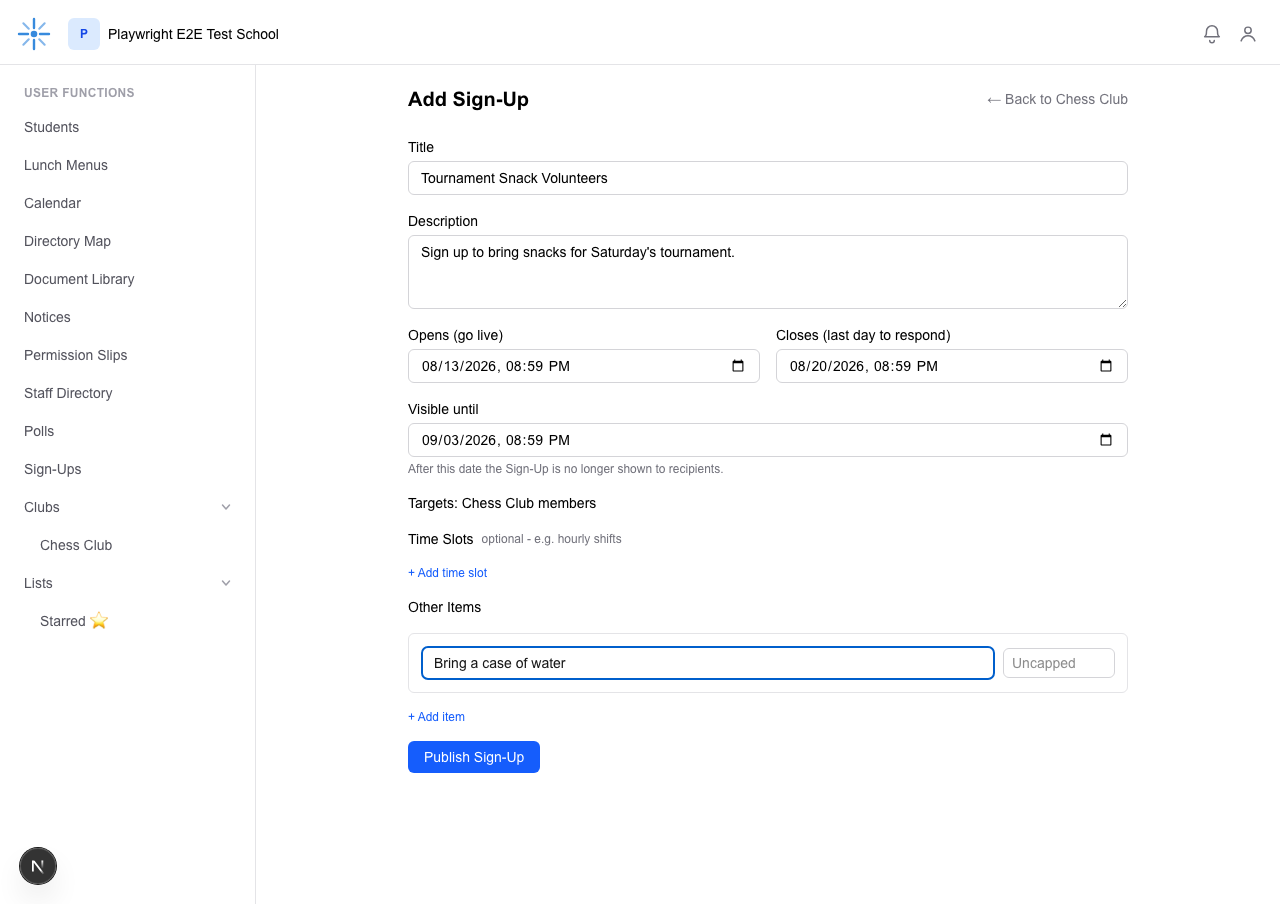 No Audience field — Sign-Ups created here always target your organization's own Roster + Members.
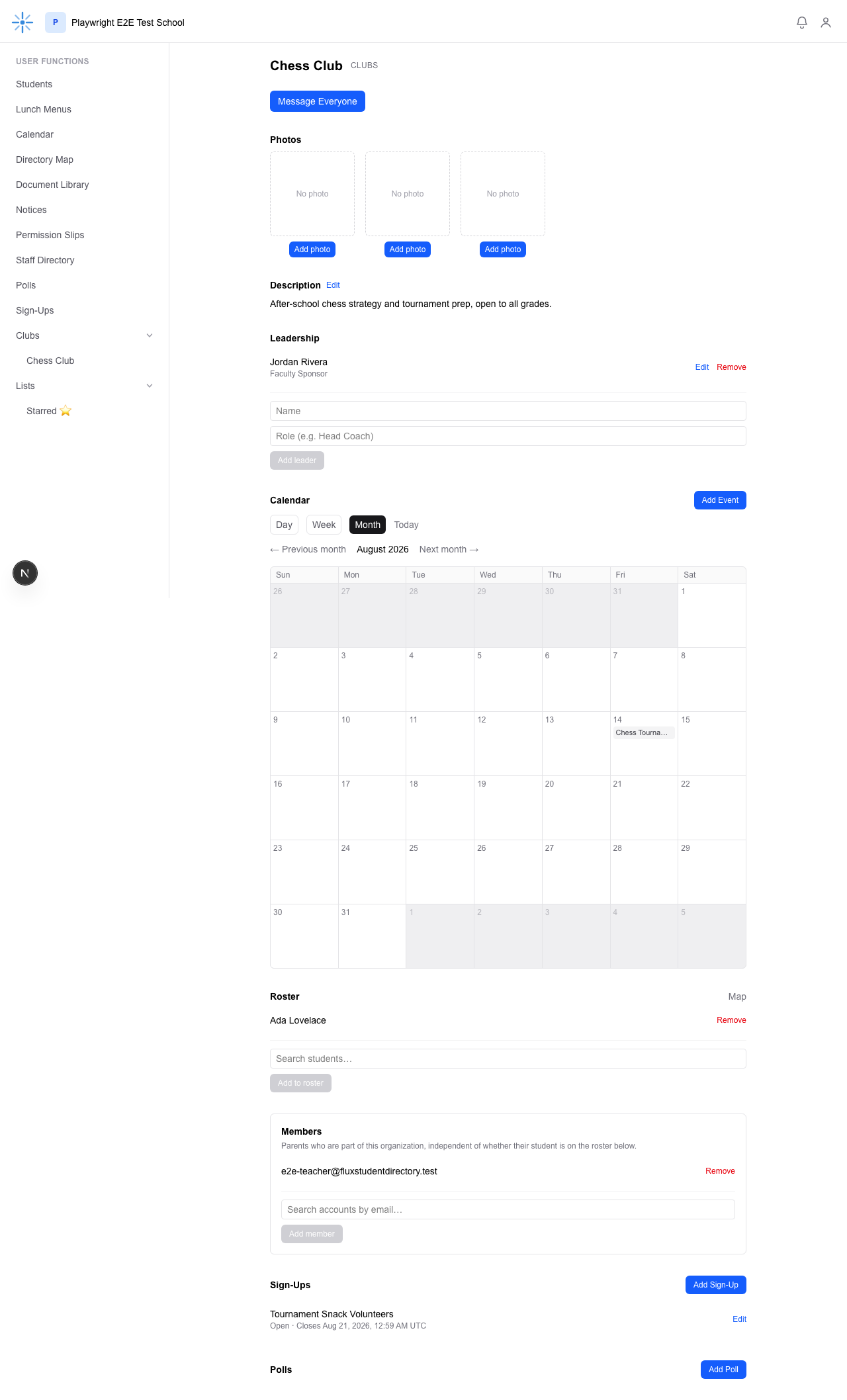 Unlike Polls below, a Sign-Up you create IS listed right here, with its own Edit link to come back
to it later.
Once published, Edit lets you change any field — until the Sign-Up has any claims on it, after which most fields lock (only title, description, and each item's quantity cap stay editable; a banner on the Edit page explains this). Open the Edit page and scroll down for a Send Reminder section, which nudges everyone who hasn't claimed anything yet — useful if you're short a few volunteers as the closing date approaches.
You cannot delete a Sign-Up yourself — that action lives on the School Admin-only /signups/admin
page. Ask a School Admin if one needs to be removed.