
How do I manage organization members?
Distinct from Roster above: Members is the list of parent accounts who are part of this organization (e.g. team parents, booster club members), independent of whether their own student is on the…
Last updated 2026-11-04
From the Organization Editor manual, "Members".
Distinct from Roster above: Members is the list of parent accounts who are part of this organization (e.g. team parents, booster club members), independent of whether their own student is on the student roster.
Search by email in the Search accounts by email… box, click the match, then Add member. Each member row has its own Remove link.
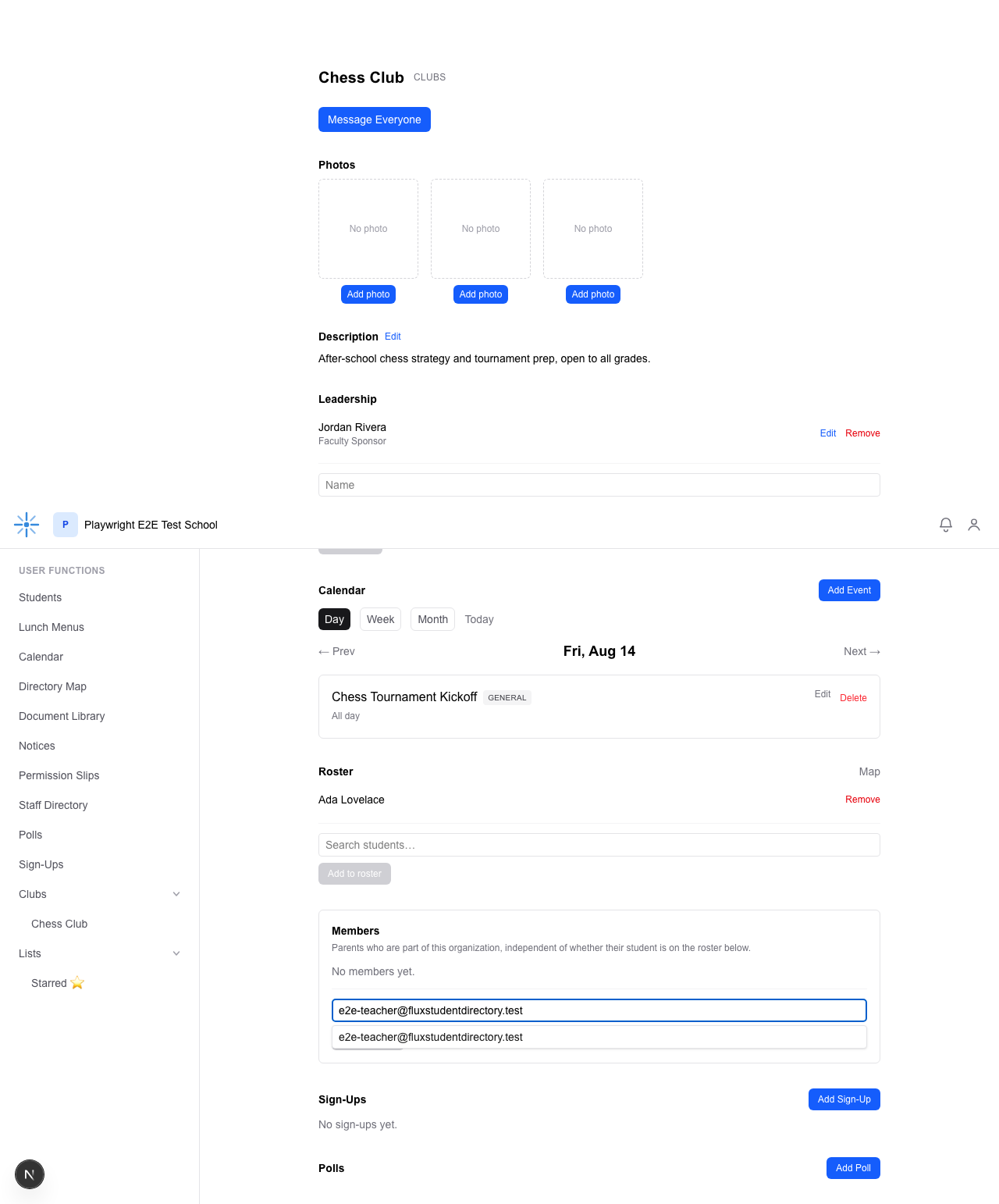 Same search-and-click pattern as Roster and Leadership, scoped by account email instead of name.
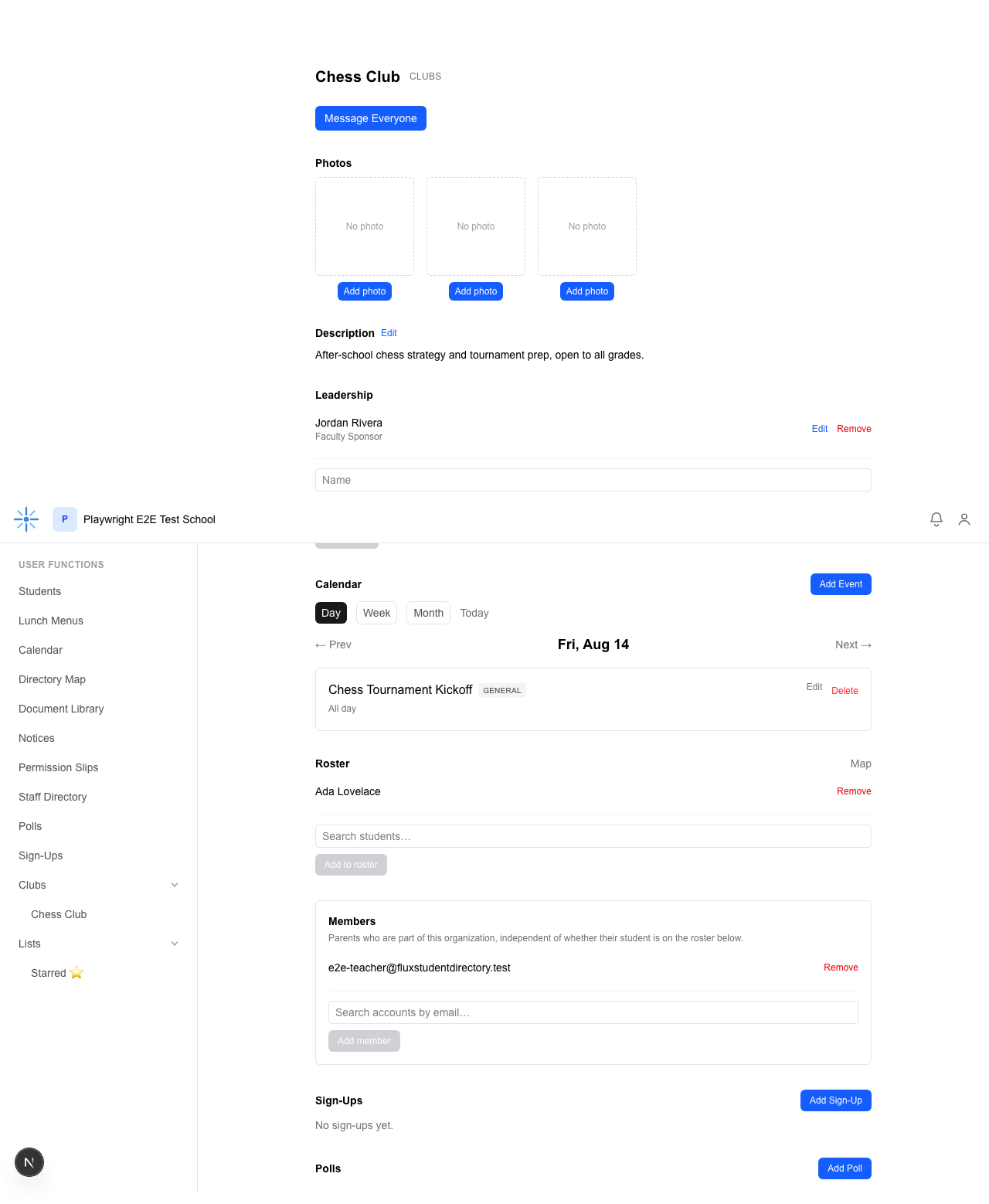 The account now appears as an organization Member.
About membership mode: when a School Admin creates an organization, they choose whether it's Admin-managed (the default — a School Admin or Editor adds Members one at a time, the way described above) or Self Sign-Up (anyone at the school can join themselves). This choice is made once at creation and can never be changed afterward, by anyone, including you. It's not shown as a label anywhere on the page, but if your organization is Self Sign-Up and your own account isn't a Member yet, you'll see a blue "This organization is open for anyone to join" banner with a Join this Organization button near the top of the page — the same banner any parent at your school would see. That's a general self-join feature, not something specific to your Editor role.