
How do I manage my organization's calendar?
This section shows only your organization's own events, filtered automatically out of the school's main Calendar — same Day/Week/Month views and navigation as the main Calendar page.
Last updated 2026-11-04
From the Organization Editor manual, "Calendar".
This section shows only your organization's own events, filtered automatically out of the school's main Calendar — same Day/Week/Month views and navigation as the main Calendar page.
Click Add Event, fill in Title (required), Description, Category, Tags, Start/End date, and either "All day" or a specific Start/End time, then Create event. You're returned to your organization's page, jumped to the day the event is on.
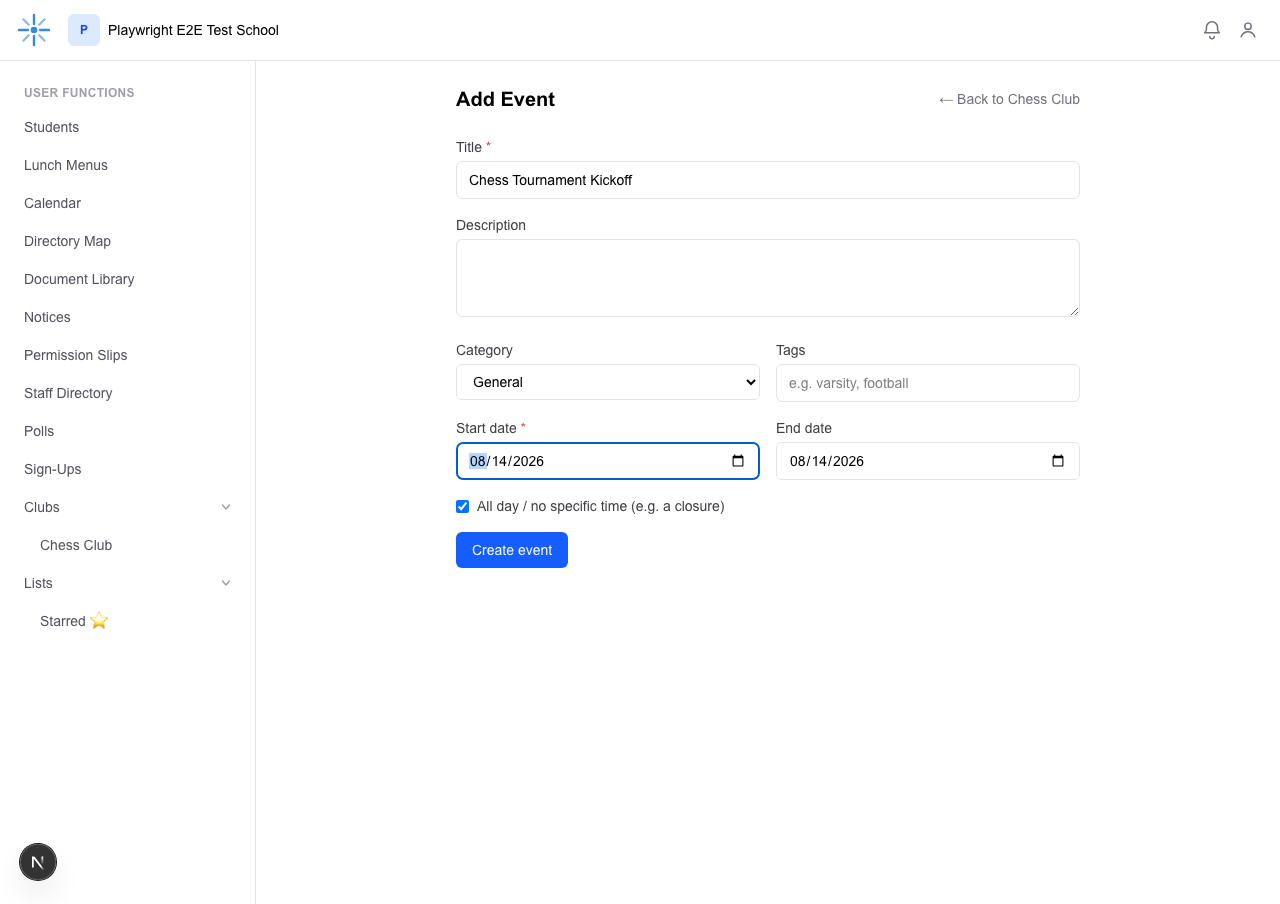 Title and Start date are the only required fields.
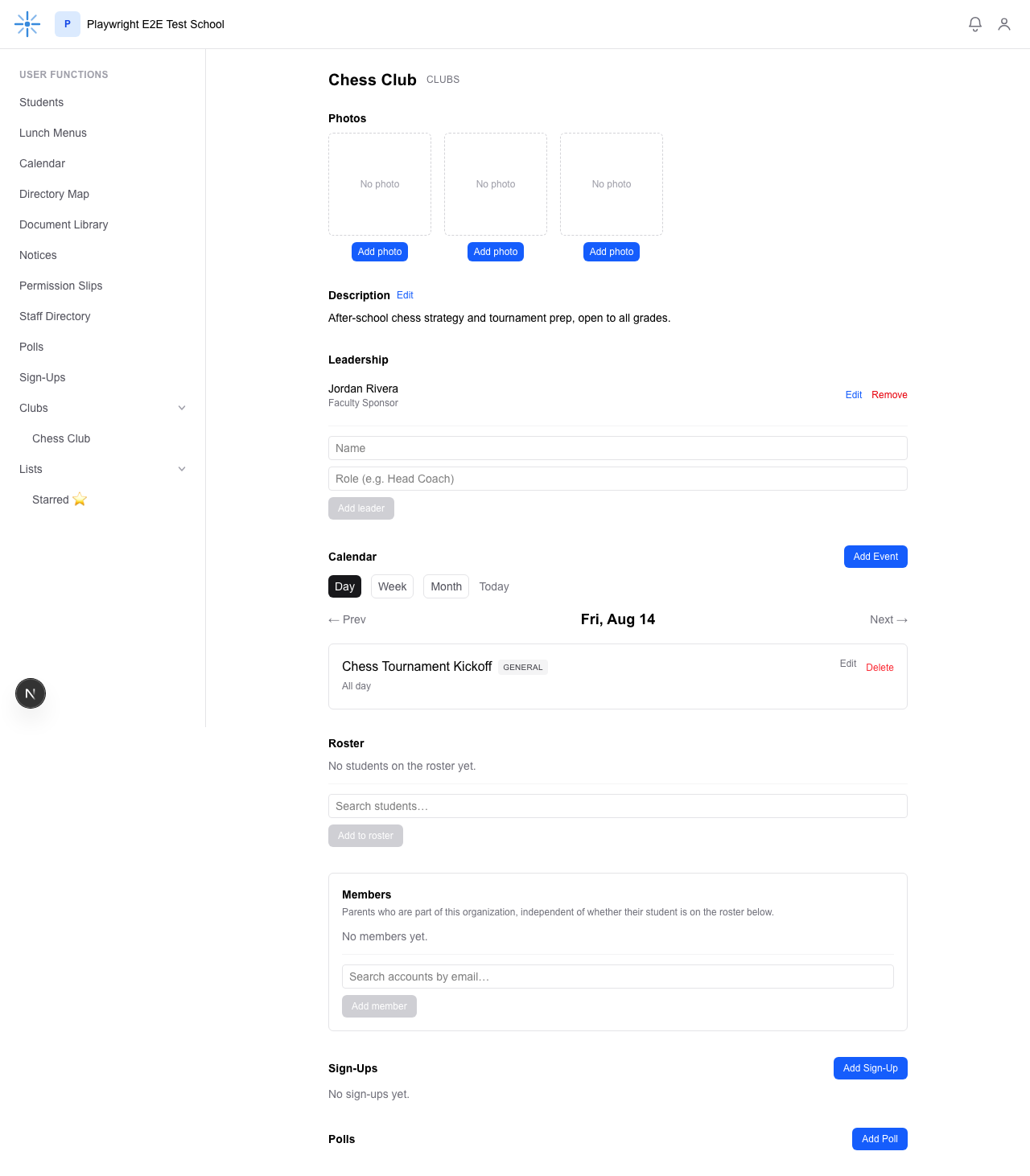 The event appears immediately, with Edit and Delete links right on the card.
An event you create here is only ever linked to your organization — you can't create or edit a school-wide event (one with no organization attached), and you can't touch another organization's events, even ones you can otherwise see on the main Calendar.