Help and FAQs
Everything a parent or guardian needs to get started with Flux Student Directory, your school's private directory, on iPhone, iPad, Mac and the web.
Before you start
Flux Student Directory is invitation only. Your school adds your email address first, then you create your account with that same email address. That is how the app finds your school and your children for you. If you are not sure which email your school has, ask the school office before you register.
Getting started on iPhone and iPad
1. Install the app
Open the App Store on your iPhone or iPad, search for "Flux Student Directory", and tap Get. It needs iOS or iPadOS 26.5 or later.
2. Create your account
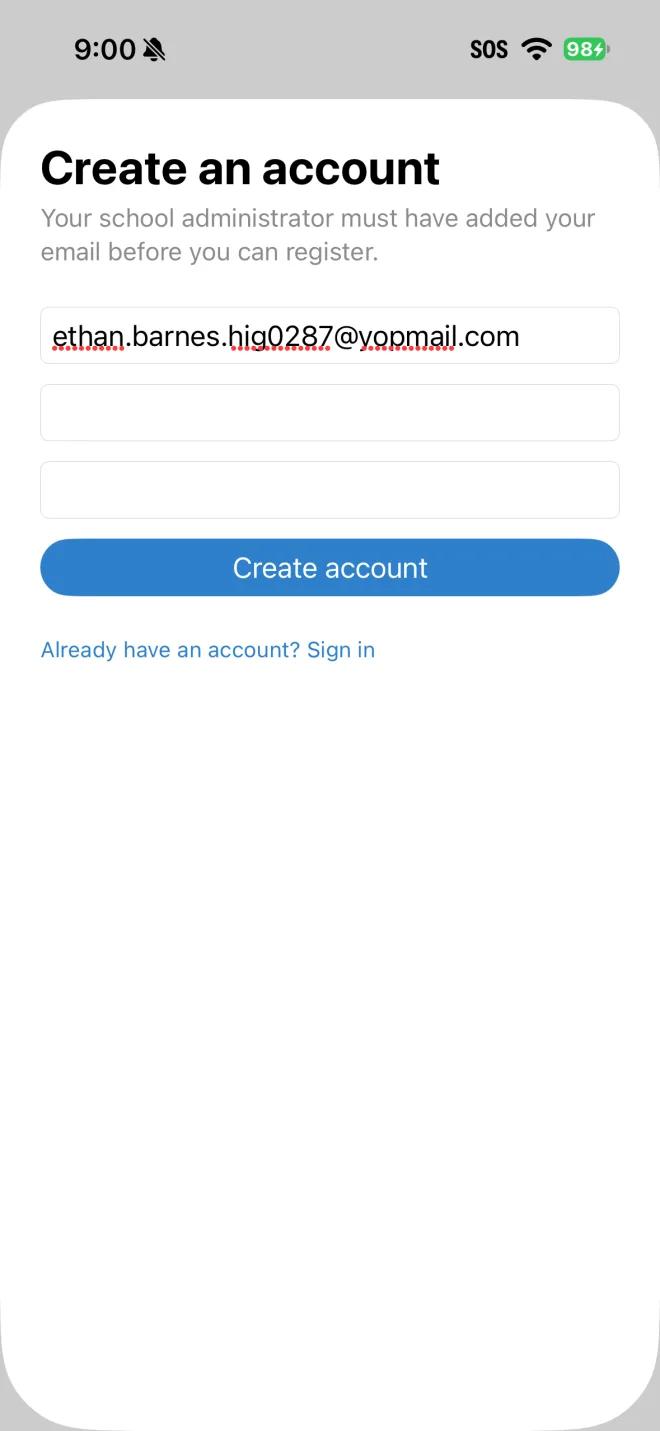
Tap Sign up, then enter the email address your school has on file and choose a password of at least 8 characters. Tap Create account.
3. Confirm your email
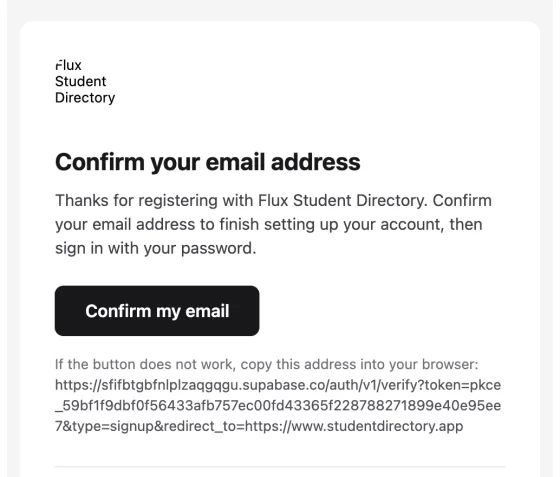
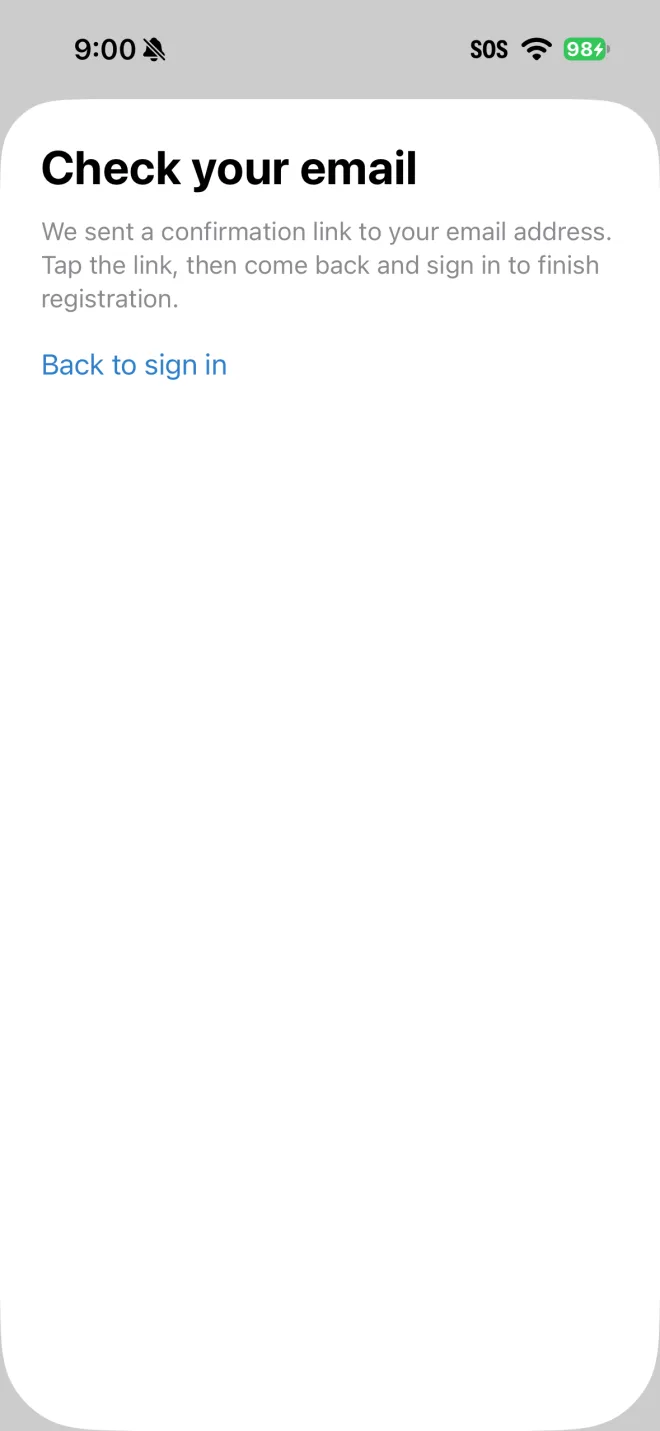
We send a message to that address with a Confirm my email button. Tap it. It works in any browser, including the one inside your mail app. Then come back to the app.
If you see a message that your email is already confirmed or the link was already used, that is fine. Just sign in.
4. Sign in for the first time
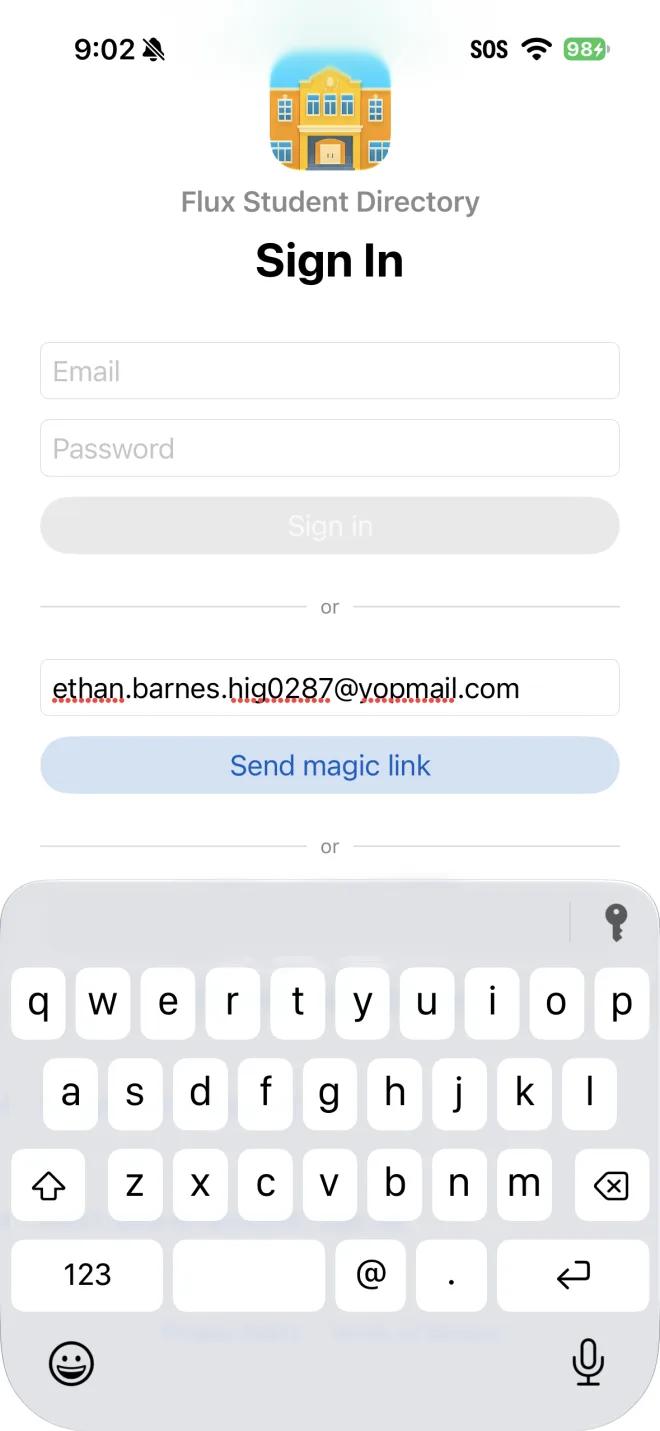
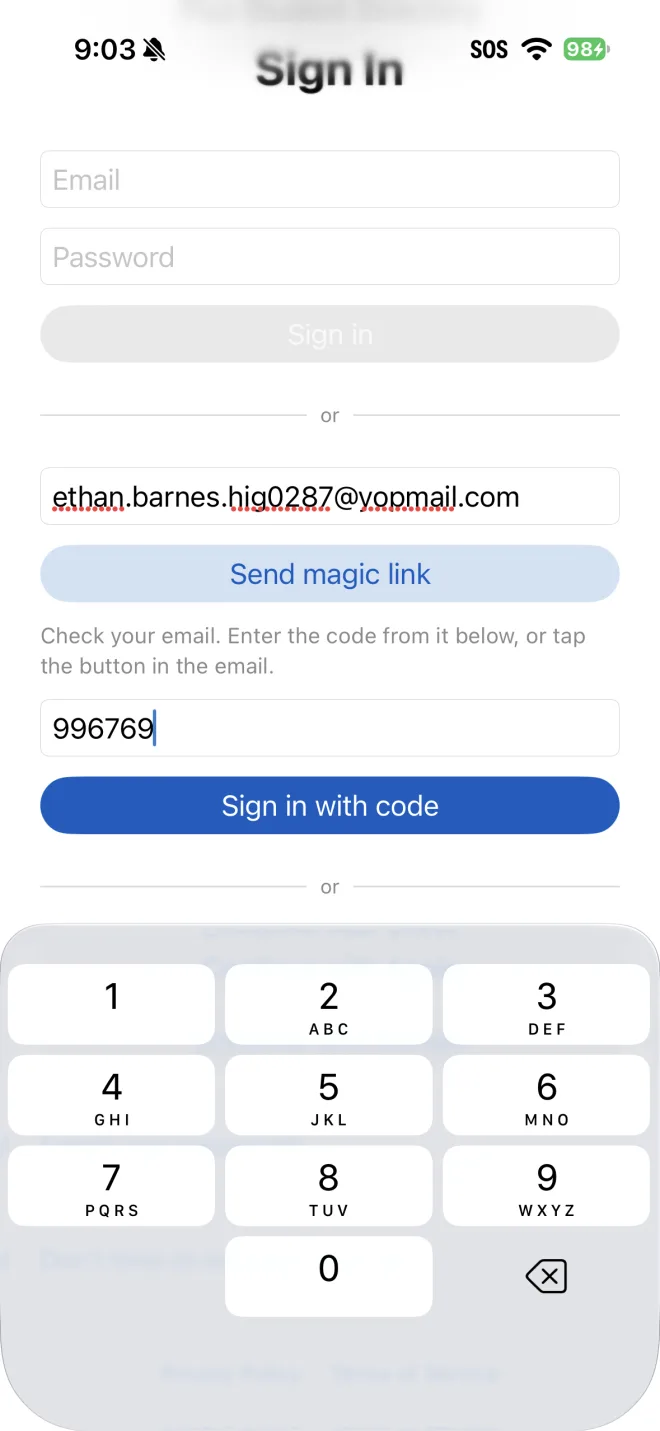
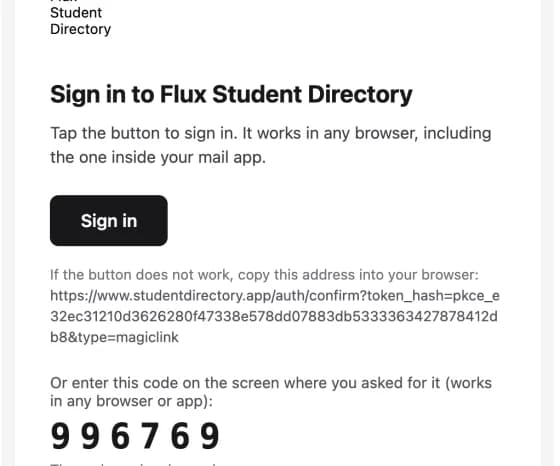
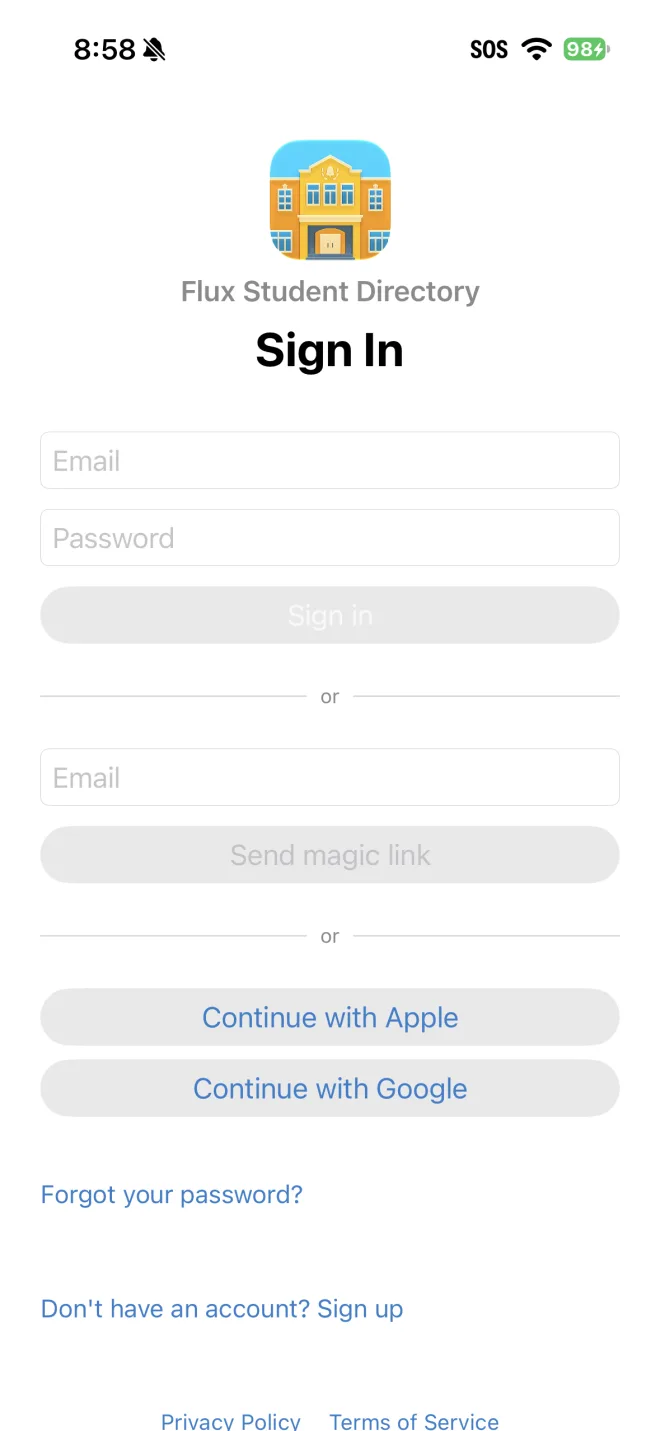
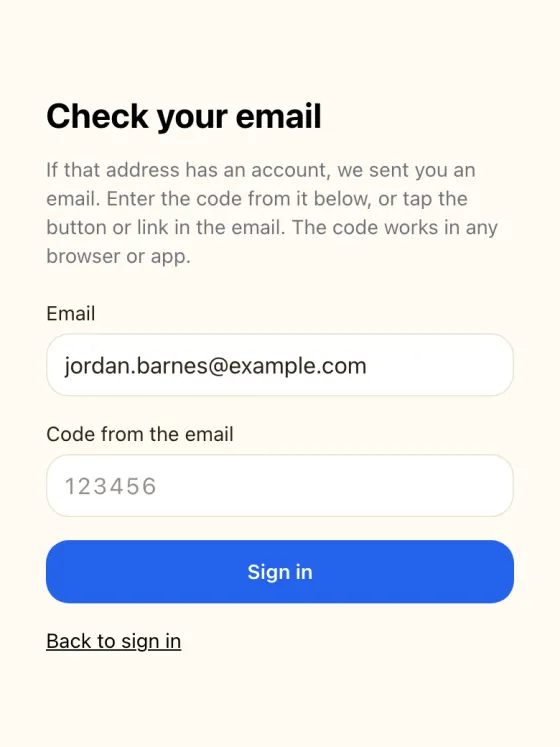
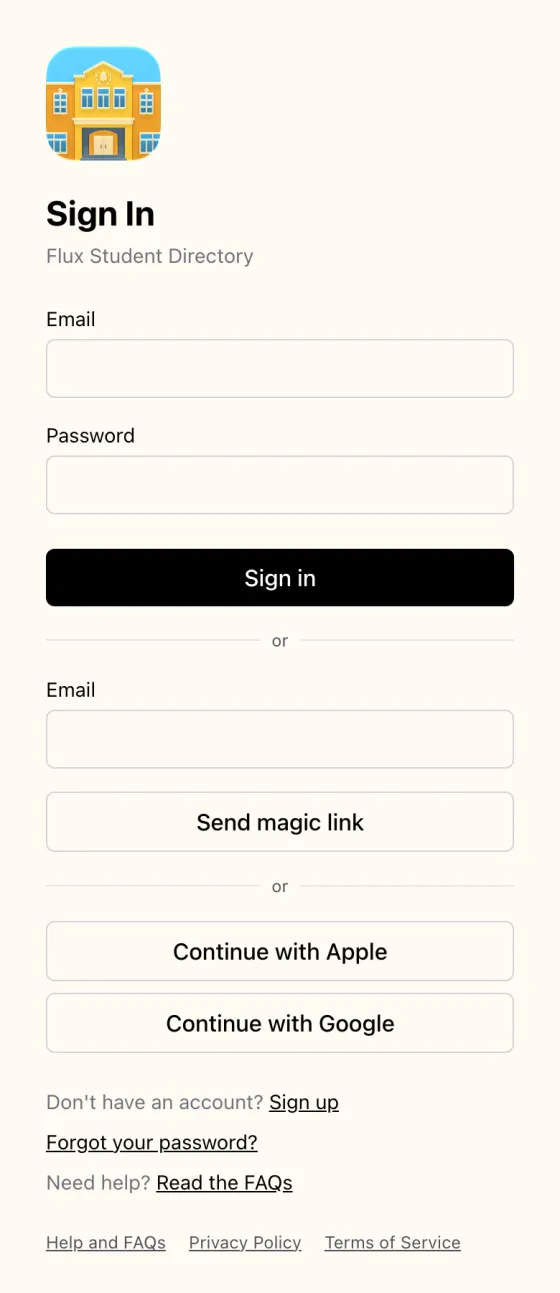
Enter your email and password and tap Sign in. If you would rather not use a password, tap Send magic link: we email you a button and a 6-digit code, and you can type the code into the app and tap Sign in with code. Continue with Apple and Continue with Google also work if you use the same email address your school has.
5. Check your school and your children
The first time you sign in, a Welcome to Flux screen lists your school and the children linked to you. Check that they are right, then tap Continue. If you see "No schools were linked to your account", see the first question below.
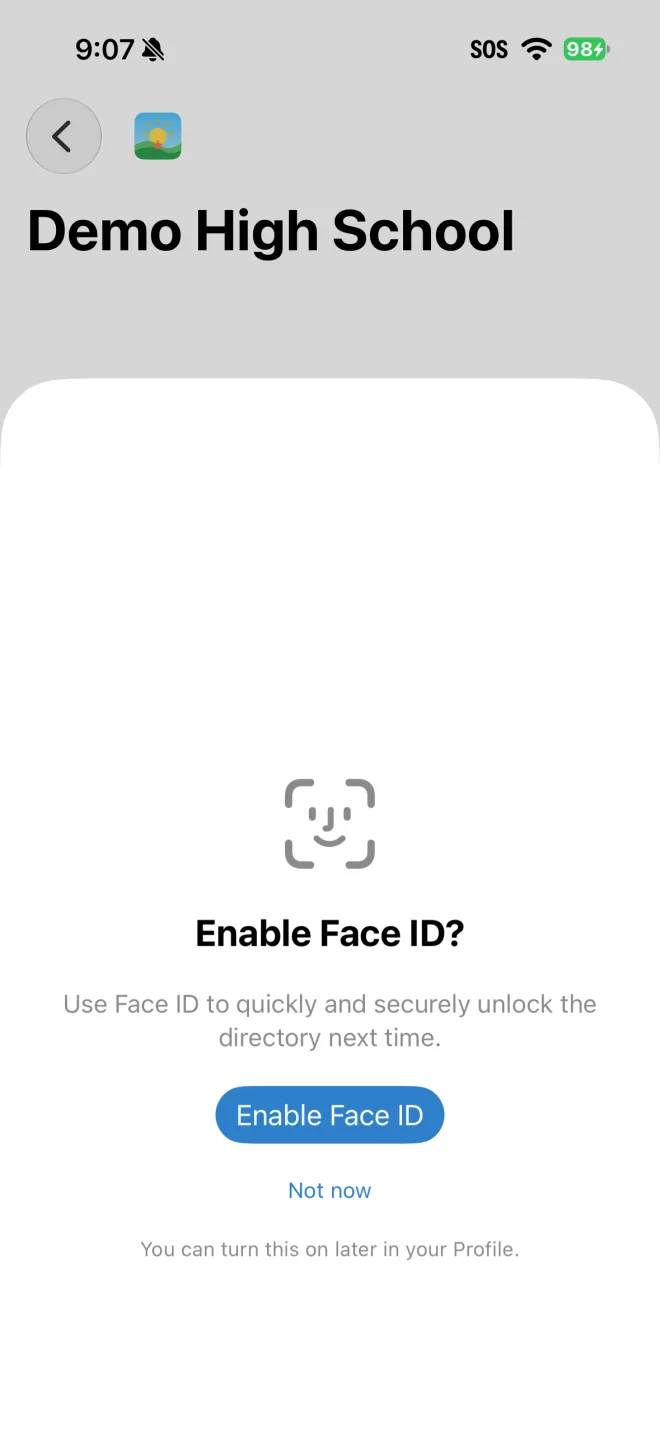
6. Face ID or Touch ID (optional)
The app offers to use Face ID or Touch ID to unlock the directory each time you open it. You can say not now and turn it on later in Profile (the gear icon).
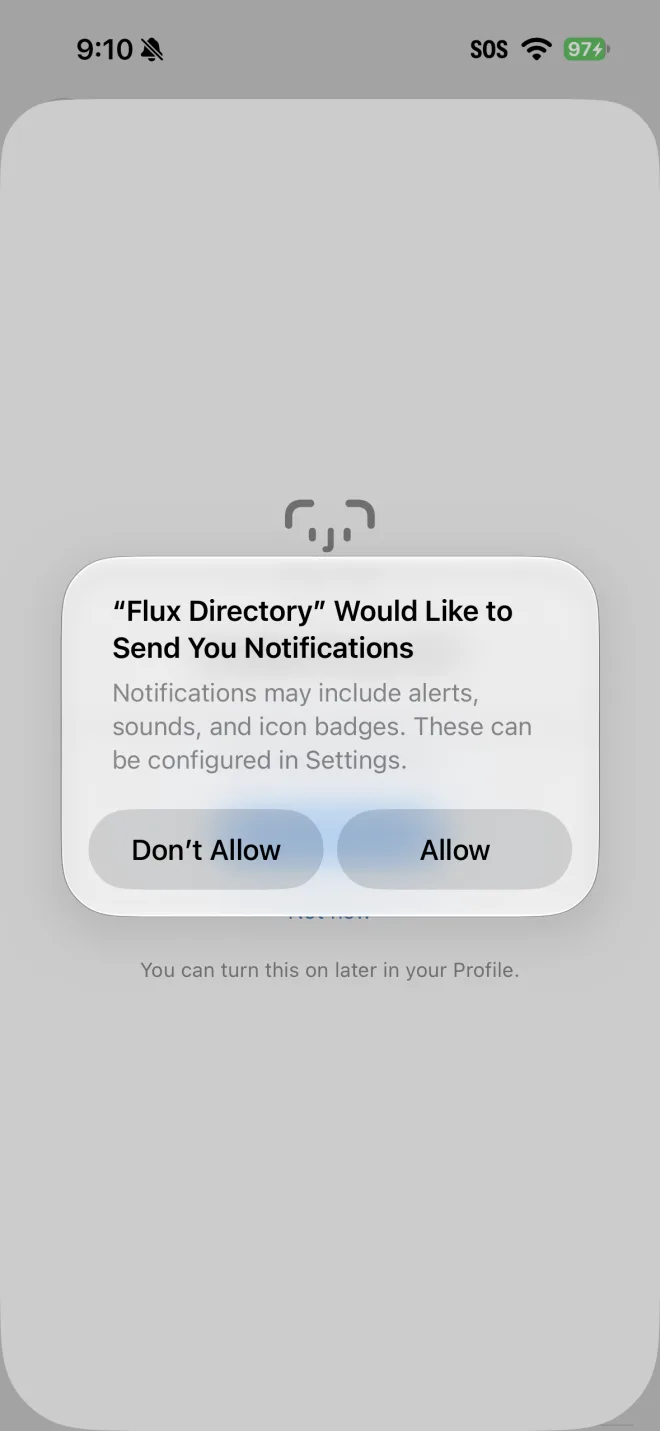
7. Allow notifications (optional)
iOS asks whether the app may send notifications, such as school notices. Tap Allow to receive them.
8. Two-factor code (only if you turned it on)
Two-factor authentication is optional. If you turned it on, the app asks for the 6-digit code from your authenticator app after you sign in.
Getting started on the web
The web app is at www.studentdirectory.app and works in any current browser on a phone, tablet or computer. It is the same account as the app.
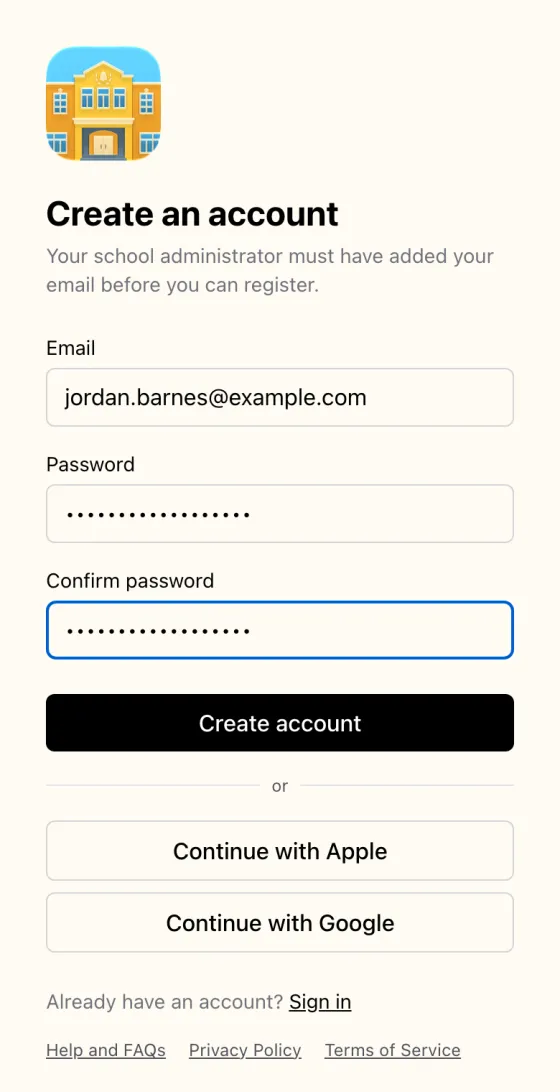
1. Create your account
Go to the Create an account page, enter the email address your school has on file and a password of at least 8 characters, and select Create account.
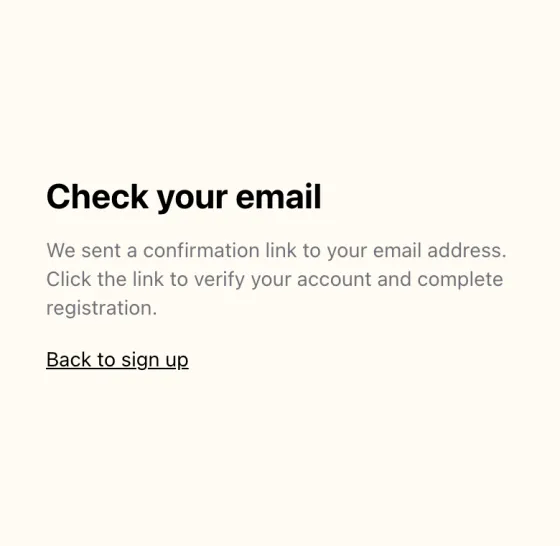
2. Confirm your email
Open the message we emailed you and select Confirm my email. If you open it on the same browser you registered in, the next page is the Welcome page; if you open it somewhere else, you land on the sign-in page with a note that your email is confirmed.
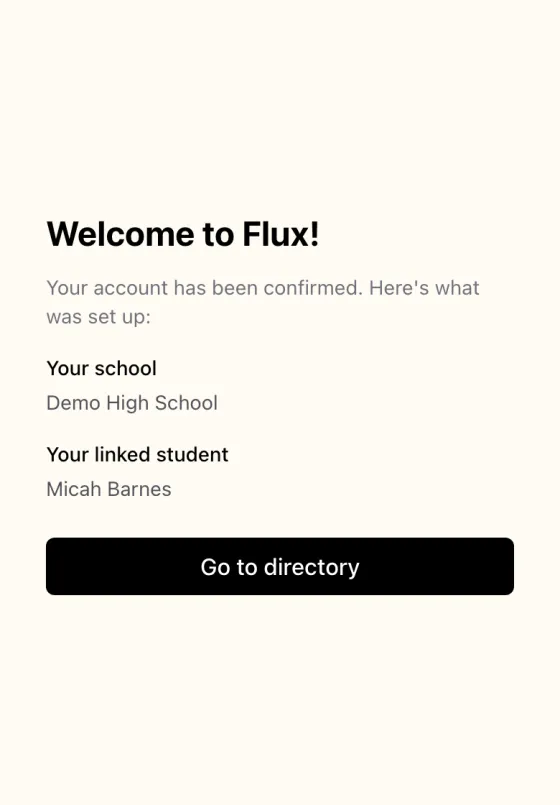
3. Check your school and your children
The Welcome to Flux page lists your school and the children linked to you. If they look right, select Go to directory.
4. Signing in again
Next time, enter your email and password on the Sign In page. Or use Send magic link: we email you a button and a 6-digit code (valid for one hour) that you can type on the next screen from any browser or device.
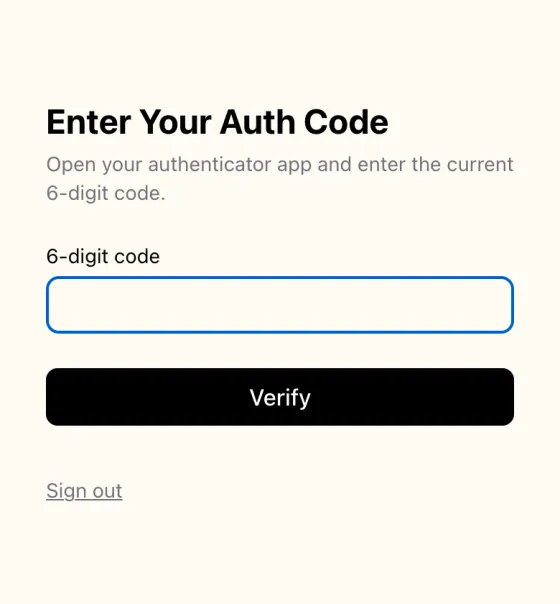
5. Two-factor code (only if you turned it on)
After you sign in, enter the current 6-digit code from your authenticator app.
Questions and answers
I see "Contact your school administrator" or "No schools were linked to your account"
It means the email address you registered with is not on your school's list. You can still create the account, but the app cannot link you to a school or a child until the school adds that address.
Ask your school office to add your email address to Flux Student Directory and link it to your child. Once they have, just sign in again; you do not need to register again, and your school and children are linked automatically when you sign in.
Which email address should I use?
Use the exact address your school has on file for you. That is how the app finds your school and your children, and it is the only way it can. If your school has an old or different address, ask them to add the one you want to use.
If you choose Continue with Apple, pick Share My Email. If you choose Hide My Email, Apple gives us a private address your school does not have, so the app cannot find your school.
I never got the confirmation email
- Wait a few minutes, then check your spam or junk folder. It comes from Flux Student Directory <noreply@studentdirectory.app>, the subject is "Confirm your email address", and the footer names Piece of Cake Adventures, LLC.
- Check that you typed your address correctly. A misspelled address never receives anything.
- If the app says too many emails were requested, wait a few minutes and try again.
- You can also ask the school office to send you the invitation again from Manage Access.
Still nothing? Email flux-support@fluxstudentdirectory.com with the address you used and we will look into it.
I forgot my password
On the Sign In screen choose Forgot your password?, enter your email, and follow the email we send you to choose a new password. In the app you can type the 6-digit code from that email. If you only want to get in, Send magic link on the Sign In screen signs you in without a password.
Two-factor authentication, codes, 1Password and Authenticator
Two-factor authentication is optional. To turn it on, open your account menu on the web and choose Security & Password, or open Profile (the gear icon) in the app, find two-factor authentication, and scan the QR code with an authenticator app such as Apple Passwords, 1Password, Google Authenticator or Microsoft Authenticator. Enter the 6-digit code to finish.
After that, signing in asks for the current code from that app. In the iPhone app, copy the code from 1Password or your authenticator and paste it into the code field; 1Password does not yet offer its code above the keyboard there, so paste or type it. On the web, your password manager can usually fill it in.
Lost your authenticator? Email flux-support@fluxstudentdirectory.com and we will help you get back in.
How do I add a second child, or a second school?
Your school adds your email to the new child. The next time you sign in, the child appears automatically. A child at a second school that uses Flux Student Directory works the same way, with the same email: it is one account with a school switcher. In the app, open Profile and tap Switch School; on the web, use the school selector at the top of the page.
How do I update my photo, phone number or address?
Your photo and name: in the app, open Profile (the gear icon); on the web, open your account menu and choose Profile. Your phone number: on the web, it is in the same Profile section.
Your family's address and contact details: open your child from the directory and tap the pencil (in the app) or Edit (on the web), then save.
Who can see my information?
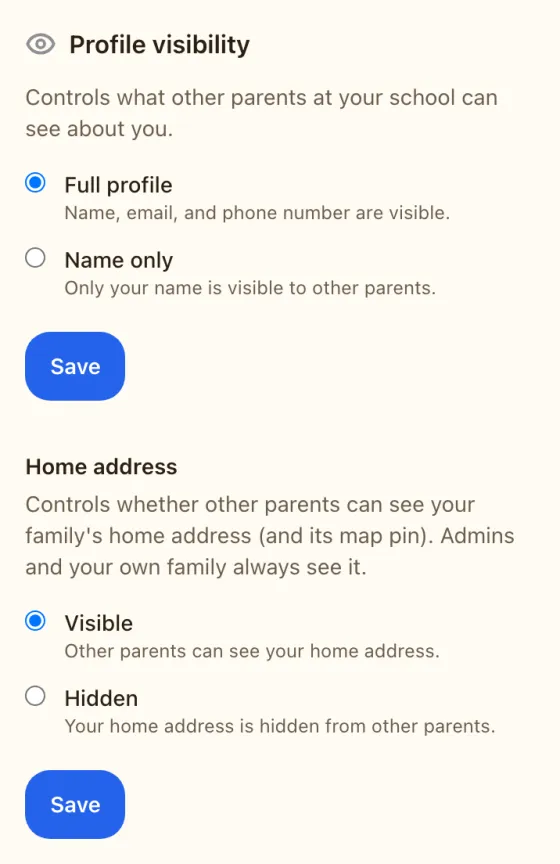
School administrators always see your contact details. For other parents you choose. In Profile (app) or your account menu then Visibility (web), set Profile visibility to Full profile (name, email and phone number are visible) or Name only (only your name is visible). You can also hide your family's home address from other parents.
Your stars, notes and lists are private to you. Read the full details in the Privacy Policy.
How do I turn on notifications?
The iPhone app asks for permission the first time you sign in. If you said no, open the iOS Settings app, choose Notifications, then Flux Student Directory, and allow them. On the web, your notices appear in the Notifications page inside the app. Some school messages are also sent by email.
How do I leave a school or delete my account?
Leaving a school or deleting your account is done on the web: sign in at www.studentdirectory.app, open your account menu and choose Account Management. Under Your schools, choose Leave this school to remove your access to one school only. To delete everything, use the Danger Zone at the bottom and type DELETE to confirm. In the iPhone app, Profile has Delete Account too.
Deleting removes your access immediately. Your data is permanently deleted after 30 days, and if you sign back in within those 30 days everything is restored.
Which devices are supported?
The app runs on iPhone and iPad with iOS or iPadOS 26.5 or later, on Mac with macOS 26.5 or later, and has a companion app for Apple Watch with watchOS 26.5 or later. There is no Android app. On Android and on any computer, use the web app in your browser.
Who do I contact for help?
Email flux-support@fluxstudentdirectory.com. For anything about who is in your school's directory or which children are linked to you, your school office is the fastest route, because the school controls that list.
What happens to my family's privacy and data?
We only use your information to run the directory for your school, and we do not sell it. We never use real school, parent or student data for testing; our testing uses made-up data. Read the Privacy Policy for the details.